Reviewing Machine Translations on Your Site Without Code
Yes: you can review machine translations on the live page with a visual editor, dashboard or extension, without editing code. A practical routine.
Yes. Several tools let you check machine translations directly on the live page, in a visual editor, from a dashboard, or through a browser extension, without writing code. Setup can still mean pasting a snippet once, so "no code" usually means you never edit code after installation, not that nothing is installed.
- Setup may need one pasted snippet. Reviewing and correcting should not require touching templates or code.
- Pick a tool whose editor shows translations on the live page, so you can check each sentence in its layout.
- Start with the pages that sell the most (home, prices, forms) and keep a glossary for brand and product names.
- Before you commit to a tool, confirm that a translator or client can review without installing anything.
What does "no code" actually mean?
The phrase covers two separate things. The first is setup: many tools need a script or a line of code added to the site once. The second is editing: once the tool is in place, reviewing and correcting text can happen without any code.
On the setup side, Locize, which compares in-context editors, states the limit of script injection plainly:
"If you cannot change the code (third-party SaaS, locked legacy stack), this approach is unavailable." — Locize, in-context editor comparison
Locize groups in-context editors into four architectures: script injection, proxy-based, browser extension, and an iframe embedded in the translation management system. Proxy-based and browser-extension tools avoid code changes, but each has its own trade-offs. Lantis's explainer on translation proxies covers how the proxy option works.
On the editing side, Webflow's localization page says its localized sites can be edited visually, with or completely without code. It presents its native AI translation as a first pass that users then perfect by hand.
Lantis installs by copying one line and pasting it into your website, with no DNS changes and no edits to the design. Setup is therefore a one-time step, and the review work happens afterwards in the visual editor and the glossary.
Before choosing any tool, ask the vendor two questions: does setup need a developer, and does each later review step need one?
Which tools let you review translations without touching code?
Three approaches come up most often: an editor that shows the whole live page, a popup on a single text, and a browser extension.
Visual editor on the live page
Weglot's visual editor shows everything on the current page, so you edit the translated text in place without switching to a separate screen. You open it from the dashboard: go to Translations, then click Visual Editor.
Popup editing on the page
Linguise's live editor opens a popup when you click a text. The popup holds three elements: the original text, the automatic translation, and an editable current translation.
Browser extension
Weglot also offers a Chrome extension that edits translations on the live website without opening the dashboard's Visual Editor. Locize points out one drawback of this architecture: only the person who installed the extension sees the editor, so a live preview link cannot be shared with people who have not installed it.
Side-by-side summary
| Tool | Where you review | What you can do |
|---|---|---|
| Weglot visual editor | Dashboard: Translations, then Visual Editor | See the whole current page and edit translated text in place |
| Weglot Chrome extension | Directly on the live website | Edit translations without opening the dashboard |
| Linguise live editor | A popup that opens when you click a text | Compare original, automatic translation, and editable translation |
| Tilde website translator | Directly in the website layout | Review, edit, and approve translations before publishing |
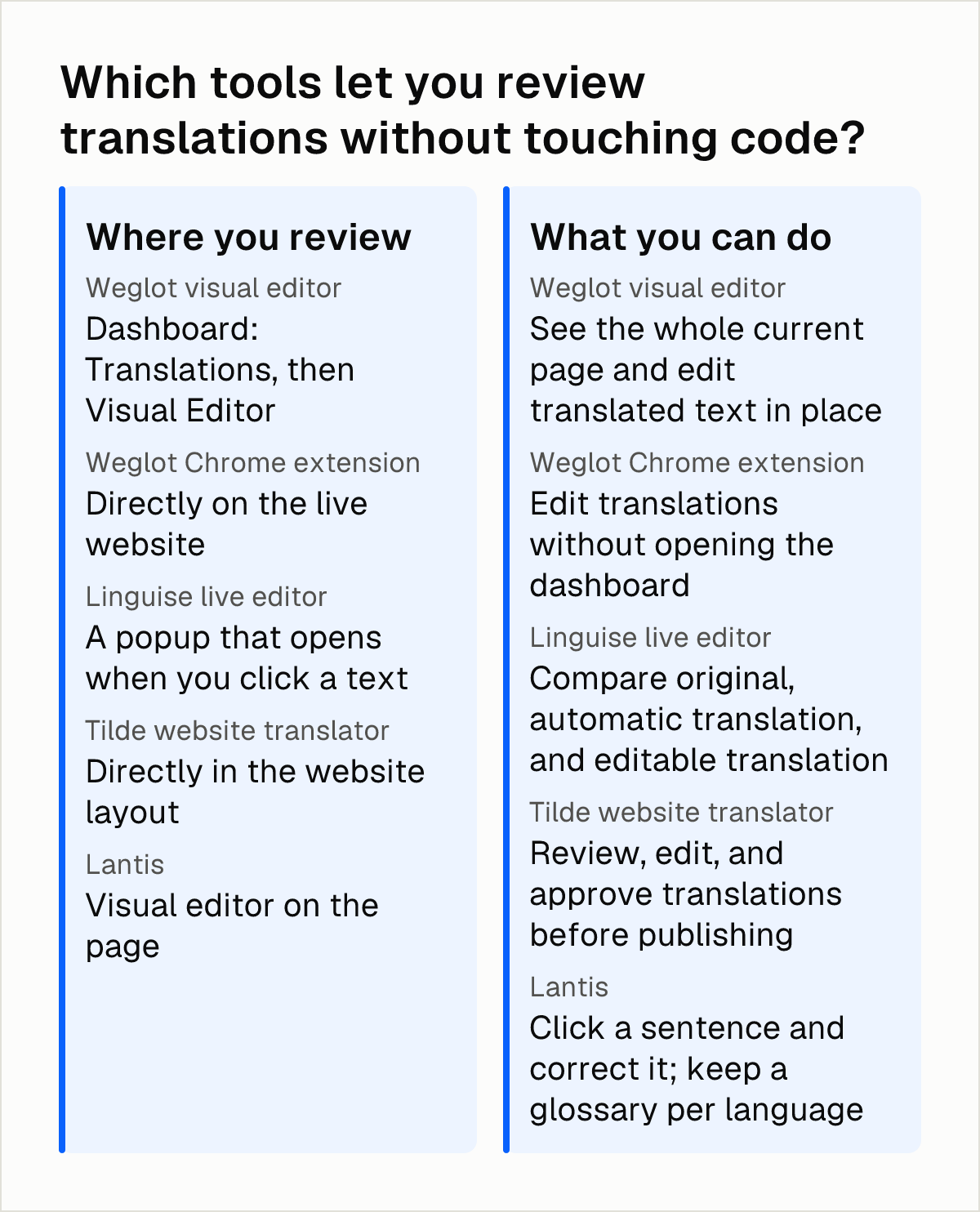
Lantis's glossary is set per language and covers brand and product names. Lantis says the AI learns from the corrections you make in the visual editor.
How do you review a translation you cannot read?
A routine that works without reading the language has four steps.
- Build the glossary first: Add brand names, product names, and key terms before you review sentences. Lantis's guide to Webflow translation tools recommends setting up a glossary for exactly these names.
- Turn on automated checks where available: Smartling's buyer's guide recommends sending machine-translated text through an editable post-edit step with automated checks for length, placeholders, and missing translations. Reviewers then focus on flagged issues instead of every line.
- Get a second reader for key pages: A reviewer in Elegant Themes' Weglot review notes that machine translation is still not perfect and that strings need manual review by someone who understands the language, or by a professional you hire.
- Read each translation next to the source: Check numbers, dates, currencies, and button labels first, because you can compare them without knowing the language.
Why does layout matter as much as wording?
A correct sentence can still break the page. German and Finnish translations are often 30% longer than English, according to SimpleLocalize, so a text can overflow or be cut off even when the wording is right.
SimpleLocalize argues that this overflow is invisible in a spreadsheet and is best checked on the live page with an in-context editor. That is a strong reason to prefer tools that show translations inside the real layout.
Look first at the places most likely to break: navigation, buttons, price tables, and form labels. If a text is cut off, shorten the wording or adjust the layout. Check narrow screens as well as desktop, since a phone leaves less room for each line.
Which pages should you review first?
You do not need to review every page on day one. Lantis's guide to Webflow translation tools recommends starting with the pages that sell the most: home, prices, and forms.
Build a short checklist for those pages: headline, main offer, prices and currency, form labels and error messages, and the steps to contact you or check out. Review the low-traffic pages afterwards. They can wait as long as the main sales and contact paths are correct.
Use the same order every time you publish a new language, so the review stays manageable for one person. For the search side of a multilingual launch, Lantis's multilingual SEO checklist lists what to verify once the text is right.
How do you keep track of what has been reviewed?
Review is easier when the tool separates approved text from text nobody has looked at. In Transifex Live, you can translate and review a website in context, with a preview of how each translation will look on the site, and click Review to mark it as reviewed once it looks good.
Lantis handles new content with a similar idea: new CMS content is pre-translated overnight and appears in a tray marked as "unreviewed". You check it before it counts as approved.
Ask whether manual corrections survive a new machine translation run. In Lantis, manual corrections are locked, so a later run does not overwrite them. Whatever tool you use, keep a simple record for the pages that matter most, with the date and what changed.
Can a translator or client review without full account access?
It depends on the architecture. Extension-based editing has a clear limit: only the person who installed the extension sees the editor, which rules out sharing a live preview link with stakeholders who have not installed it.
Tilde's website translator lets users review, edit, and approve translations directly in the website layout before publishing, so a reviewer works on the real page rather than a separate file.
Some in-context review tools also put conditions on the site itself. Crowdin's documentation says its in-context review only works when the page texts sit in the regular DOM, not in a shadow DOM. If your site uses custom components, check this before you choose.
Decide who needs access and to what. A proofreader may need only one language and a handful of pages, which matters more than the number of seats on a plan.
Where does Lantis fit in this routine?
Lantis covers the review steps above. It has a visual editor for correcting translations, a glossary per language, and an option to exclude pages or blocks from translation. It translates with Gemini by default and can also use Claude, DeepL, or DeepSeek, and each language includes 500,000 words.
Setup works like script-based tools: one line of code pasted into the site. If your platform does not allow adding a script, confirm that before you start. Lantis works on Framer, Webflow, Shopify, WordPress, and any other website, so the review routine does not depend on one builder.
Weglot, Linguise, Transifex, and Tilde also offer review on the page, each with different trade-offs in setup, editing access, and sharing. Compare them on the same points: what setup requires, who can edit, who can see the result, and how layout is checked.
Next steps
- List your brand names, product names, and key terms, and enter them in a glossary before you review any sentence.
- Open your highest-value pages (home, prices, forms) in the translated language and check numbers, currencies, and button labels first.
- Resize the browser to phone width and look for cut-off text in menus, buttons, and form labels, especially in languages that run longer than your source.
- Ask a native speaker, a colleague, or a client to read the key pages once, and confirm beforehand whether they need an account or an extension.
- If you want to review translations in a visual editor without touching templates, Lantis works like this: you paste one line once, click a sentence to correct it, and keep brand terms in a per-language glossary. Its comparison of AI and manual web translation covers the advantages, limits, and costs of each.
Frequently asked questions
How can I check machine translations if I don't speak the target language?
Start with a glossary for brand and product names, then use a tool with automated checks. Smartling's buyer's guide recommends checks for length, placeholders, and missing translations. For key pages, ask someone who reads the language to review them once.
Do my manual corrections survive when the machine translation is run again?
It depends on the tool, so ask before you commit. In Lantis, manual corrections are locked, and new CMS content appears in an "unreviewed" tray. A later run does not overwrite your edits.
Which pages should I review first on a translated website?
Start with the pages that sell the most: home, prices, and forms. Check headlines, offers, prices, currency, form labels, and error messages first. Review low-traffic pages afterwards.
Can a translator or client review my translated site without full account access?
It depends on how the editor works. With a browser extension, only the person who installed it sees the editor, so you cannot share a live preview link with people who have not installed it. Tilde, for example, lets users review, edit, and approve translations in the website layout before publishing. Confirm the access model before you invite a reviewer.
Sources
- In-context translation editor: how it works and how the major TMS platforms compare (Locize)
- Website translation and localization tools (Webflow)
- How to Find the Best Translation Editor for your Website (Weglot)
- Edit translations using the front-end live editor tool (Linguise)
- How to use the Visual Editor (Weglot Help Center)
- Website Translator — AI Multilingual Sites (Tilde)
- In-Context Translation Review Tools: Buyer's Guide (Smartling)
- Weglot WordPress Translations Plugin - Overview and Review (Elegant Themes)
- In-Context Translation Editor: Visual Website Localization (SimpleLocalize)
- Translating and Reviewing in Transifex Live
- In-Context (Crowdin)
Pon tu web en varios idiomas hoy.
Una línea de código. SEO real por idioma. Traducción con IA. Sin tarjeta para empezar.